
Embrace AI Fearlessly
How to Open a Seclore-Protected File
Welcome to Seclore. If you have received a file protected with Seclore and are unsure how to open it, you have come to the right place! The file has been protected by Seclore to ensure only authorized users can access it.

Lets get started


I’m using a Mac
How to open a protected file in a native application after installing an agent
You need
- An internet connection
- Permissions to install an app on your desktop.
- Download this installer, and run it to install the Seclore app.
Steps to open
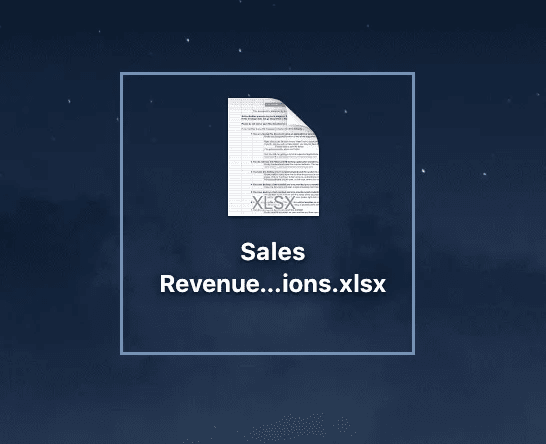
Double-click on the file you want to open.
You will be asked for your email Id. If you’re an employee, enter your work email Id. If you’re a vendor or business partner, enter the email Id you use to communicate with this organization.
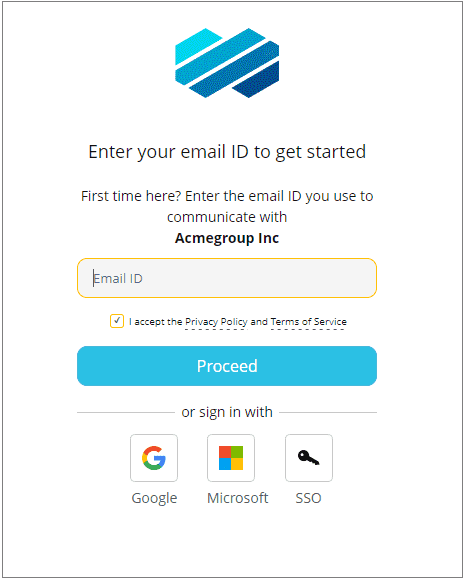
Follow the system prompts to log in successfully. The file will open in your desktop application.
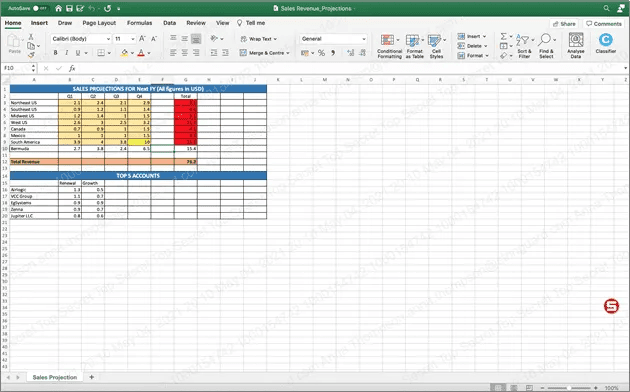
Working with the file
Click on the Seclore badge to view your permissions on the file.
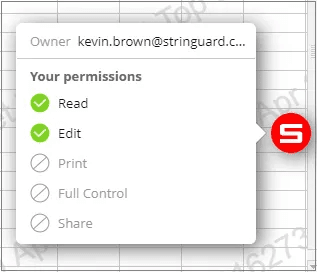
If the owner of the file has given you the right permissions, you will be able to edit and print the file.
For more help, refer to Opening protected files on Mac.
For further help, write to support@seclore.com or
log a ticket at support.seclore.com


